
Get insights like this delivered to your inbox
Join 2,500+ GTM professionals. No spam, unsubscribe anytime.
Subscribe to NewsletterCross-object workflows in HubSpot allow you to automate tasks and sync data between different CRM record types, like Contacts, Companies, Deals, Tickets, and Custom Objects. These workflows are particularly useful for businesses managing data across multiple objects, enabling smoother automation and streamlined processes. However, Custom Objects face limitations - they can’t trigger workflows based on property changes, which is where the Company Bridge Pattern comes in. This method uses the Company object as a central hub to enable automation for Custom Objects by mirroring key properties.
Key Takeaways:
- Cross-object workflows rely on associations: These links between records enable data flow and automation.
- Custom Object limitations: They can only trigger workflows when created, manually enrolled, or added to a list.
- Company Bridge Pattern: A strategy to use the Company object as an intermediary for automation, overcoming Custom Object restrictions.
- Property mirroring: Sync data between objects to make it accessible for workflows.
This setup helps businesses automate complex processes, like syncing lifecycle stages, identifying cross-sell opportunities, and aggregating data across multiple objects. While effective, it requires careful planning to avoid workflow loops and manage system complexity.
HubSpot Feature Highlight: Copy Data Across Objects with Sync Properties
sbb-itb-69c96d1
How Cross-Object Workflows Work
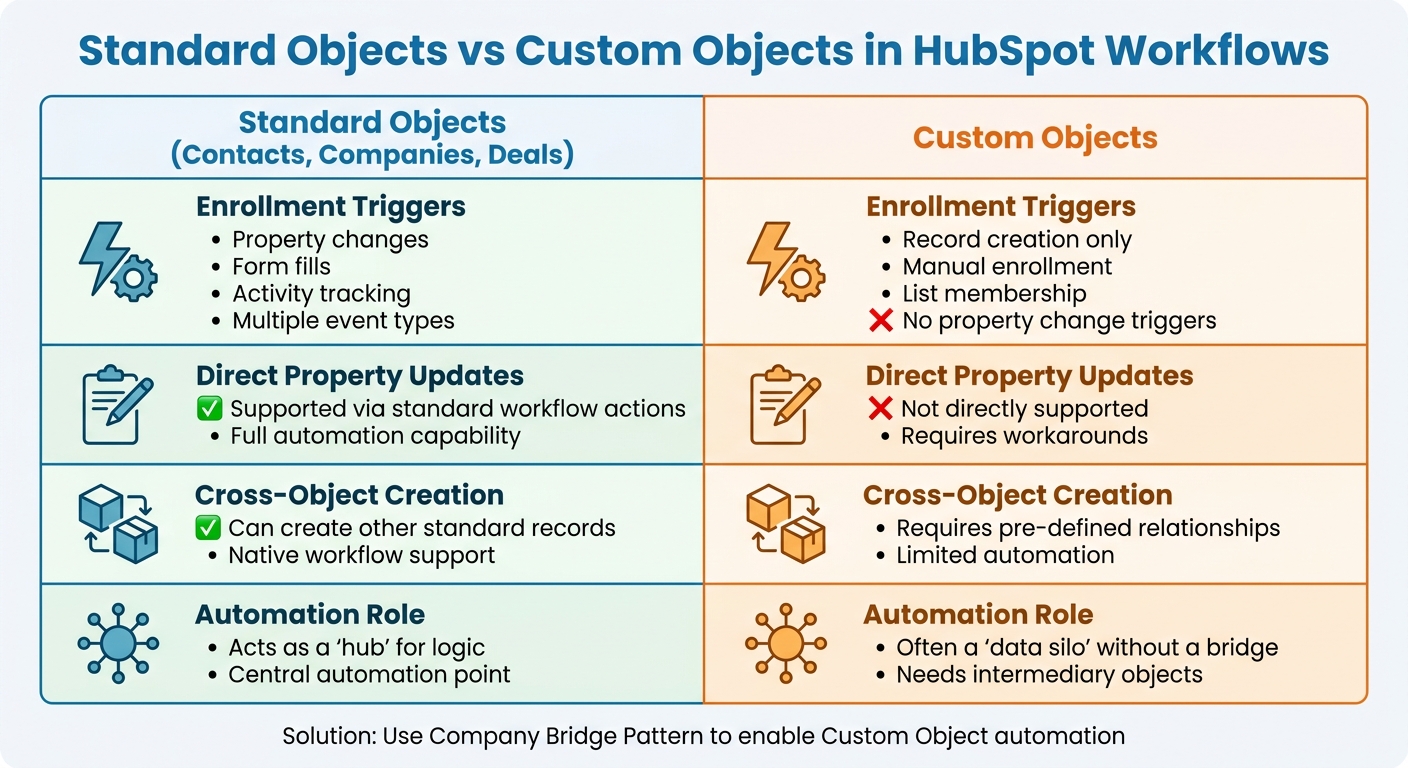
Standard Objects vs Custom Objects in HubSpot Workflows
Cross-object workflows in HubSpot depend on associations, which are the two-way links between CRM records. For example, when you connect a Deal to a Company or a Contact to a Custom Object, you create an association that allows data to move between them. These associations are the backbone of automation, enabling workflows to create, update, or remove relationships based on specific triggers.
How It Works
The process relies on property matching and workflow actions. HubSpot can automatically establish associations when records share matching property values. For instance, a Contact and Company with "Boston" in their location fields can be linked automatically. However, this matching is case-sensitive, so "hubspot" won't match "HubSpot". Once associations are in place, workflows can use actions like "Create associations", "Apply association labels", "Update association labels", and "Remove association labels" to manage these connections. Note that there is a daily limit of 5,000,000 workflow executions per account.
Property mirroring is a key feature for cross-object automation. This involves copying essential data from one object to another - often from a Custom Object to a Company record. This makes the data "workflow-aware", enabling automations that the original object couldn't trigger alone. HubSpot provides a "Property sync" field type that quickly copies values between associated records. However, these synced values are read-only on the target record. For more flexibility, teams often use the "Copy property value" workflow action for bi-directional updates or complex logic.
By combining associations, property mirroring, and workflow triggers, you can achieve bidirectional data flow. For example, data can pass through a chain of objects - like Deal → Company → Custom Object - overcoming limitations where direct object-to-object automation isn't available. This ensures synchronized data across your CRM through expert technical architecture.
This mirroring technique also sets the stage for the Company Bridge Pattern, which helps address the limitations of Custom Objects.
The Company Bridge Pattern
The Company Bridge Pattern uses the Company object as a middleman to enable automation for Custom Objects, which have significant restrictions. Custom Objects can’t trigger workflows based on property changes; they can only enroll records when they’re created, added manually, or included in a list. By mirroring a critical property from a Custom Object to its associated Company record, the Company can act as a proxy trigger for workflows.
Paul Sullivan from ARISE GTM explains it best:
Rather than trying to make custom objects workflow-aware directly, make them workflow-aware through the Company object.
For example, if a Custom Object contains a "Health Score", mirroring that property to the associated Company record allows workflows to react to changes in the score. This could trigger an alert to the customer success team when the score drops below a certain threshold. The Company object essentially acts as a hub, receiving and sending signals between Custom Objects and other records.
Using association labels like "Primary" ensures workflows target the right records, enabling accurate updates to lifecycle stages and timeline activities. Labels such as "Decision Maker" or "Primary" help refine automation for precise results.
One critical thing to watch out for: avoid creating workflow loops when mirroring properties between objects. As HubSpot consultant Karsten Köhler warns:
HubSpot isn't set up well to copy information back and forth between objects... decide on which object is the primary, leading one.
To prevent infinite loops, establish clear rules and failsafes. If you need help architecting these complex flows, you can book a technical call with our RevOps team.
Key Features of Cross-Object Workflows
Several features make cross-object workflows a powerful tool for automation across HubSpot.
Association-based triggers allow workflows to execute based on specific events, such as when an association is created, a label is applied, or an associated record meets certain criteria. For example, you can trigger a workflow when a Deal is linked to a Company or when a Contact is labeled as the "Primary" contact.
Property-based enrollment expands automation across multiple objects. For instance, you could enroll Deals in a workflow only if their associated Company has an Annual Revenue above $100,000. This allows for complex, multi-object logic without needing custom code.
Complex automation chains are possible through the Company Bridge Pattern. Standard objects like Contacts, Companies, and Deals can trigger workflows based on property changes, form submissions, and other events. By routing data through workflow-capable objects, you can create automation that spans your entire CRM - linking Custom Objects, Deals, and more.
| Feature | Standard Objects | Custom Objects |
|---|---|---|
| Enrollment Triggers | Property changes, form fills, activity, etc. | Record creation, manual, or list membership |
| Direct Property Updates | Supported via standard workflow actions | Not directly supported |
| Cross-Object Creation | Can create other standard records | Requires pre-defined relationships |
| Automation Role | Acts as a "hub" for logic | Often a "data silo" without a bridge |
Understanding which objects can fully support automation and using them as intermediaries is key to overcoming limitations. This structured approach transforms HubSpot's constraints into a system capable of handling complex, multi-object workflows.
How to Set Up Cross-Object Workflows in HubSpot
Creating cross-object workflows in HubSpot requires Enterprise-level access and a carefully planned setup. These workflows help connect different objects in HubSpot, filling in automation gaps. To get started, you’ll need to enable specific features, establish property connections, and design automation logic that aligns with HubSpot's structure.
Step 1: Enable Custom Objects and Necessary Features
First, confirm that your account has an Enterprise subscription, as custom objects are only available at this level for Marketing, Sales, Service, Content, or Data Hub. Additionally, your user account must have "Account access" permissions to manage custom objects.
To define your custom object schema, go to Settings > Data Model. Each custom object requires a primary display property - a unique identifier like "Pet Name" or "Order Number". Be cautious when naming internal properties since APIs rely on these names. Also, set up association relationships between your custom object and standard objects, such as Company or Deal, before linking records in workflows.
Keep in mind that HubSpot workflows have a daily limit of 5 million action executions, and each association label counts as 2 actions. Once custom objects are enabled, you can move on to configuring property mirroring for the Company object.
Step 2: Set Up Property Mirroring on the Company Object
After enabling custom objects, the next step is syncing essential data through property mirroring. This process makes custom object data accessible in workflows by syncing it to the Company object. HubSpot provides two options for this: native Property sync fields or workflow-based copying.
For straightforward, one-way syncing, create a Property sync field by navigating to Settings > Properties and selecting Create property. Choose Company as the object type, set Property sync as the field type, and link it to the relevant custom object property. You can also specify which associated records to sync from - such as "Primary" or all associated records - and whether the sync pulls from the first created or most recently created record. These sync fields update within 5 seconds but are read-only on the target record. This approach is a key part of the Company Bridge Pattern, which converts custom object data into actionable signals for workflows.
For more complex scenarios, including bidirectional updates, you’ll need to use the Copy property value workflow action. This method offers greater flexibility but requires additional setup and adheres to workflow processing times.
"If you want to update the property value on both sides, you should continue using your existing workflow. Sync properties do not support bi-directional sync." - HubSpot Knowledge Base
Step 3: Build and Test Workflow Logic
Once your features are enabled and properties are synced, it’s time to create and test your workflow logic. Start by building your workflow based on the source object - the record from which data will be copied. Set the enrollment trigger to "Property [Name] is known" and enable re-enrollment for that property to ensure the workflow runs whenever the value changes.
Add the Copy property value action, select the source property, and set the target property on the associated Company record. To avoid workflow loops, designate one object as the primary data source. Clearly label target properties as "[READ ONLY]" to prevent manual overwrites.
Before launching your workflows, test them in a HubSpot Developer test account. Pay close attention to potential edge cases, such as rapid form submissions, which might cause data overwrites if multiple records update the same property simultaneously. For activities like notes that lack re-enrollment capabilities, use list membership as a workaround. For example, create a list that adds contacts when a new note is created, and then use that list to trigger the workflow.
Use Cases for B2B SaaS Companies
Cross-object workflows are a game-changer for B2B SaaS companies dealing with customer data spread across multiple systems. These workflows help by reducing manual data entry, highlighting revenue opportunities, and keeping customer records aligned as accounts progress through various stages. Below are some practical examples of how the Company Bridge Pattern can streamline data management and trigger actions within your CRM.
Aggregating Data Across Deals and Custom Objects
B2B SaaS companies often store essential data - like usage metrics, win rates, and health scores - in custom objects. To make this data actionable, sync key properties to the Company record, which acts as a central hub. This setup allows the Company record to gather signals from custom objects and trigger automations across Deals and Contacts.
For instance, you can mirror the "Active Seat Count" from a "Usage Metrics" object to the Company record. With this in place, workflows can automatically update Deal properties, create tasks, or flag opportunities for account expansion. As Paul Sullivan from ARISE GTM puts it:
The Company object is universally connected and workflow-capable... Use Company as the intermediary layer that receives signals from custom objects and sends signals back.
Additionally, you can create cross-object report cards that consolidate data from multiple objects and display it directly on CRM records. These reports provide sales teams with a unified view of critical metrics - such as total account ARR, support ticket volume, and deal history - without the need to switch tabs. These features are available for Professional and Enterprise users and can be filtered to show only the most relevant data for each specific record.
Now, let’s look at how these insights can fuel cross-selling strategies.
Identifying Cross-Selling Opportunities
Cross-object workflows can uncover signals for expansion opportunities that are hidden across various objects. For example, when seat utilization reaches 80% or a high-value feature is adopted, workflows can automatically create expansion deals or notify account managers. This requires a seamless flow of intelligence from custom objects to the Company record (to trigger alerts) and from Deals back to custom objects (to update aggregated data).
Here’s how it works: Set up a workflow to monitor usage properties on the Company record. When "Seat Utilization" exceeds 80%, the workflow can create a new Deal in your expansion pipeline and assign it to the account owner. You can also use association-triggered signals - for example, when a "Partner Intelligence" custom object is linked to a Company, a "Has Active Partner" property can be set to indicate cross-sell potential.
Automating Lifecycle Updates with Associations
Using the mirroring and association techniques mentioned earlier, syncing lifecycle stages across Contacts, Companies, and Deals is crucial for accurate reporting. Cross-object workflows simplify this process by automating updates based on changes in associated records. For instance, when a new Deal is created for an existing customer, workflows can automatically update the Contact's lifecycle stage to "Opportunity" and adjust the Company stage to reflect the expansion.
HubSpot workflows now allow you to create associations natively between records by matching property values like "Company Name" or "Contract Number". As of June 2024, this feature enables automation for association management, which previously required manual effort. When setting up these associations, you can apply association labels (e.g., "Decision Maker" or "Primary Contact") for better control and the flexibility to remove specific associations later.
Keep in mind, though, that association-based workflow actions come with a daily limit of 5 million executions per account. Also, ensure that property values used for matching are identical, as the "Create associations" action is case-sensitive - "hubspot" won’t match "HubSpot".
Limitations and Workarounds
The Company Bridge Pattern offers an effective solution to many automation challenges, but HubSpot's inherent limitations still demand creative workarounds. For example, cross-object workflows are constrained because custom objects can only enroll through record creation, manual enrollment, or list membership. They cannot trigger workflows based on property changes or directly update records. Additionally, custom object tokens are not supported in sales sequences, and funnel reports for these pipelines are unavailable.
The Company Bridge Pattern helps mitigate these issues by leveraging the Company object, which supports native workflows. By mirroring key properties from custom objects onto the Company record, you can trigger automation when those properties are updated. This enables workflows to create tasks, update deals, or send alerts based on changes to the Company record.
Addressing Common Constraints
Here’s how the Bridge Pattern tackles some of HubSpot's core limitations:
| Limitation | Impact | Workaround (Company Bridge Pattern) |
|---|---|---|
| No Property-Change Triggers | Workflows can't respond to updates in custom object records (e.g., a change in "Win Rate"). | Mirror the custom object property to the Company record. When the Company property changes, it triggers the workflow. |
| No Direct Record Creation | Manual updates or complex API solutions are required to create new records. | Use workflows tied to the Company object to process logic and route data to related objects. |
| Limited Association Triggers | Automating actions when records are linked or unlinked (e.g., adding a "Battlecard" to a "Deal") is challenging. | Update a "Status" property on the Company record when an association changes, triggering the necessary automation. |
| Indirect Association Filtering | Segmenting contacts using properties from objects two levels away is unsupported. | Route all relevant data through the Company object, making properties accessible on a single associated record. |
These strategies ensure workflows continue to function despite HubSpot's native limitations. However, when creating associations via workflows, keep in mind that property values must match exactly - HubSpot's "Create associations" action is case-sensitive. For example, "hubspot" won't match "HubSpot." Additionally, there’s a daily cap of 5 million workflow executions per account, including failed attempts. For more advanced logic, you might consider using a Private App with webhooks to monitor specific property updates.
Weighing the Trade-Offs
While the table above highlights key limitations and their solutions, implementing the Company Bridge Pattern requires thoughtful planning. The Company object acts as a central hub, receiving signals from custom objects and applying automation logic. This approach helps break down data silos and activates workflow triggers. However, it can also lead to property sprawl and an increase in workflows. For instance, managing 5 custom objects with 10 critical properties each could result in over 50 workflows to maintain the system.
If your custom object is primarily a simple lookup table or involves one-way data flows, the Bridge Pattern might be excessive. In such cases, repurposing an unused standard object could preserve native reporting capabilities and funnel analysis. Balancing the complexity of the system with the insights gained is crucial for optimizing cross-object workflows in HubSpot.
Conclusion
Cross-object workflows in HubSpot take custom objects beyond being mere static data holders - they turn them into dynamic systems capable of driving operational actions in real time. Using strategies like the Company Bridge Pattern, these workflows close automation gaps by allowing custom objects to trigger workflows and update related records seamlessly.
By mirroring key properties to the Company record, teams enable two-way data flows that can improve win rates, notify sales leadership, and assign tasks to customer success managers - all without the need for manual exports. As Paul Sullivan from ARISE GTM insightfully states:
The question isn't 'Is this complex?' (it is), but rather 'Is the intelligence valuable enough to justify the complexity?' (often yes).
However, these advantages come with added system complexity. Before diving into cross-object workflows, it's essential to weigh the operational benefits against the ongoing maintenance required. For simpler scenarios involving basic lookups and one-way data flows, alternative solutions may be sufficient. But for RevOps teams managing advanced go-to-market strategies, the Company Bridge Pattern is critical for real-time synchronization across Deals, Companies, and custom objects.
To implement this effectively, an Enterprise subscription is necessary to access custom object workflows and pipeline actions. Focus on mirroring key properties for vital intelligence metrics, use association triggers to track relationship changes, and establish validation logic to ensure association integrity.
For B2B SaaS companies aiming to build CRM intelligence, cross-object workflows lay the groundwork for a scalable RevOps architecture. If you're looking to tackle complex cross-object automation, Vestal Hub offers expertise in creating unified data systems and intelligent workflows tailored for growing SaaS businesses. This approach provides the structure needed to support long-term success in a competitive B2B landscape.
FAQs
When should I use the Company Bridge Pattern?
When working with HubSpot's custom objects, the Company Bridge Pattern is a smart way to handle cross-object workflow challenges. By leveraging this method, you can create more advanced data models and automate processes between related objects. This is especially useful for managing complex relationships within your workflows, ensuring smoother operations and better organization.
How do I prevent workflow loops with mirrored properties?
To keep your workflows in HubSpot running smoothly and avoid endless loops caused by mirrored properties, you can use conditional logic to ensure updates only happen when properties are genuinely out of sync. Here’s how:
- Verify property alignment: Before making an update, check if the target property already matches the source property.
- Use custom flags: Implement flags to monitor and track synchronization status between properties.
- Set precise enrollment triggers: Define specific conditions for enrollment to stop repetitive updates.
These steps not only prevent cyclical updates but also align with HubSpot's recommended practices for workflow efficiency.
Property sync vs Copy property value: which should I use?
In HubSpot workflows, the Copy property value feature allows you to duplicate a property's value from one record to another (like transferring data from a contact to a company). This is ideal for one-time or conditional updates.
On the other hand, Property sync ensures that property values stay continuously and automatically aligned across related records. It keeps your data consistent in real-time.
Use Copy property value for occasional data transfers, and rely on Property sync for ongoing, automated updates between objects.