

Get insights like this delivered to your inbox
Join 2,500+ GTM professionals. No spam, unsubscribe anytime.
Subscribe to NewsletterWorkflow errors in HubSpot can disrupt operations, hurt revenue, and damage trust in your systems. This guide breaks down how to identify, fix, and prevent these issues to keep your automation running smoothly.
Key Takeaways:
- Types of Errors: Temporary errors (auto-retried by HubSpot) vs. permanent errors (require manual fixes). Common examples include rate limits (429), authentication failures (401/403), and data validation issues (e.g., duplicate emails).
- Finding Errors: Use the "Review automation issues" dashboard and workflow action logs to pinpoint problems. HubSpot retains error logs for 90 days.
- Prevention Tips:
- Validate data before workflows run (e.g., check for missing fields).
- Use modular workflows instead of large, complex ones.
- Manage API rate limits with batching and monitoring headers.
- Fixing Errors:
- Address root causes like lifecycle stage conflicts or missing records.
- Re-enroll records after resolving issues.
- Monitoring: Set up real-time alerts and conduct quarterly audits to catch and resolve problems early.
Follow these strategies to avoid disruptions and maintain trust in your HubSpot workflows.
How To Configure Hubspot To Detect Workflow Anomalies And Set Up Alerts [2026 Guide]

If you need help managing these alerts, consider ongoing HubSpot RevOps support to maintain your system's health.
sbb-itb-69c96d1
Types of Errors in HubSpot Workflows
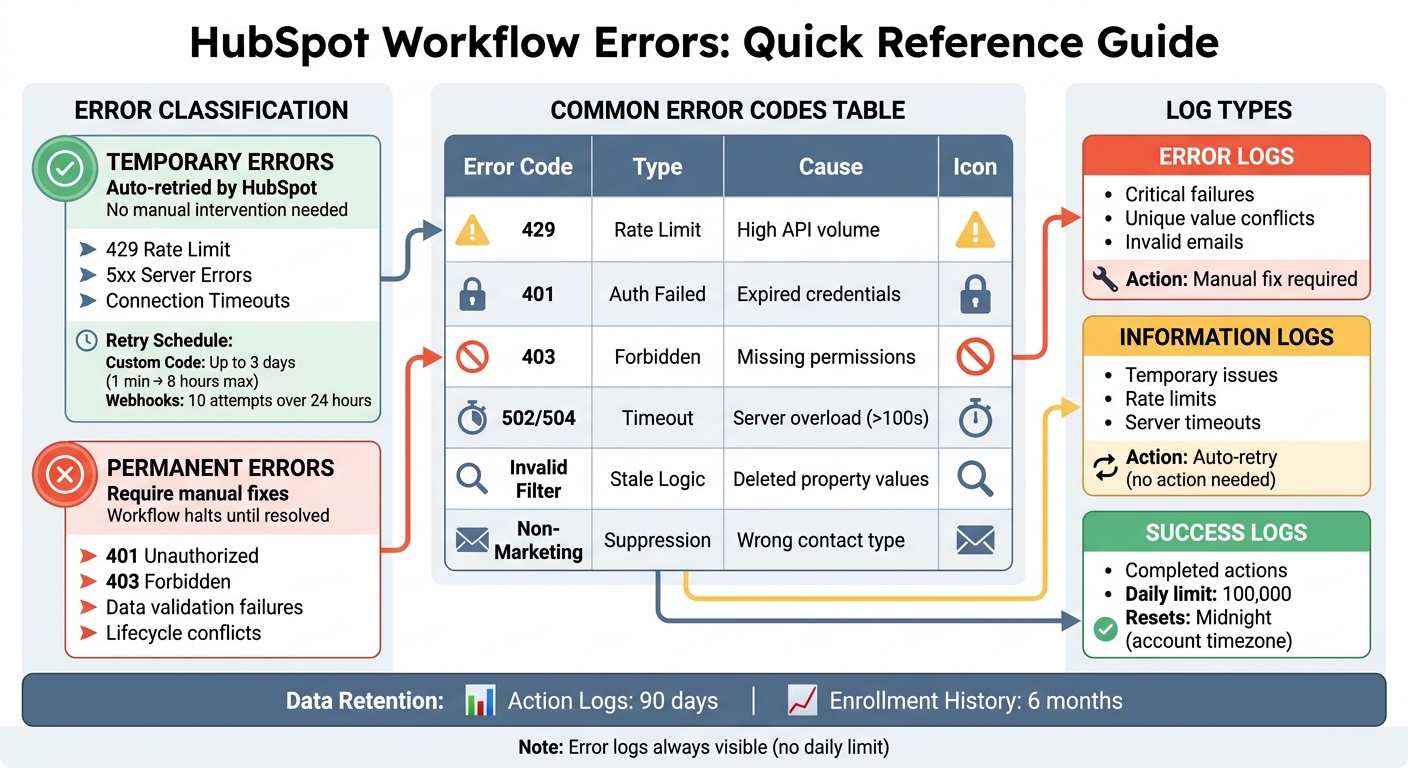
HubSpot Workflow Error Types and Troubleshooting Guide
Temporary vs. Permanent Errors
HubSpot classifies workflow errors into two main groups: temporary errors and permanent errors.
Temporary errors are those that HubSpot automatically retries until they succeed or time out. These include issues like 429 (Rate Limit) errors and 5xx server errors. For instance, if a custom code action fails, HubSpot retries for up to three days, starting one minute after the failure and gradually increasing the interval up to eight hours. Similarly, webhooks are retried up to 10 times within a 24-hour window.
On the other hand, permanent errors arise from issues like configuration mistakes, data validation problems, or record-specific conflicts. These errors aren't retried automatically - you'll need to address the root cause manually. Examples include 401 (Unauthorized) and 403 (Forbidden) errors, as well as lifecycle stage conflicts or missing associations. Depending on the error, it might either skip a specific action (e.g., not sending an email to a non-marketing contact) or halt the workflow entirely until the issue is resolved and the record is re-enrolled.
Common Error Types and Their Causes
Recognizing common errors can help you troubleshoot more effectively:
-
429 Rate Limit Errors: These occur when your account exceeds HubSpot’s API limits during periods of high activity. HubSpot provides a
Retry-Afterheader (in milliseconds) to indicate how long to wait before trying again. - Authentication Errors (401 and 403): A 401 error signals invalid or expired API credentials, while a 403 error means the authentication lacks the necessary permissions or scopes for the action.
- Server Errors (502, 503, 504): These typically indicate that HubSpot’s servers are overloaded or that a request took too long (over 100 seconds) to process. Such errors are temporary and often resolve themselves.
- Data Validation Failures: These happen when workflows attempt actions like creating records with duplicate emails or trying to set lifecycle stages backward (e.g., moving from Customer to Lead).
- Association Errors: These occur when a workflow tries to update or copy data to a record that isn’t linked to the enrolled record. For example, updating a Company property for a Contact without an associated Company. To avoid this, include conditions like "Associated Company ID is known" in your workflow.
| Error Code / Type | Meaning | Typical Cause |
|---|---|---|
| 429 Too Many Requests | Rate Limit Exceeded | High volume of API calls or workflow activity affecting CRM objects |
| 401 Unauthorized | Authentication Invalid | Expired or incorrect API keys/OAuth tokens |
| 403 Forbidden | Permission Denied | Missing permissions or scopes |
| 502/504 Timeouts | Processing Overload | Server overload or requests exceeding 100 seconds |
| Invalid Filter | Stale Logic | Changed or deleted property values used in triggers or branches |
| Non-Marketing Contact | Email Suppression | Attempting to email contacts not designated as "Marketing Contact" |
Understanding these errors helps you tackle issues more effectively. Next, let’s look at how to find these problems in your workflow logs.
Finding Errors in Workflow Logs
To locate workflow errors, go to Automation > Workflows and select Review automation issues in the top-right corner. This dashboard lists all workflow failures and allows you to filter by the "Workflows tool" to pinpoint specific problems.
For a closer look at a specific workflow, hover over it, click More > View details, and open the Action logs tab. Here, you’ll find details like object IDs, event types, and action types. The Diagnose button provides insights into why an action was executed, while the Event details section shows the workflow revision active when the error occurred.
HubSpot keeps high-level action log data for 90 days and historical enrollment data for six months. Even though there’s a daily limit of 100,000 successful workflow execution logs (starting at midnight in your account’s time zone), error logs will still appear after this threshold is reached. Use the "Event" filter in the Action logs to focus on "Errors" or "Information" logs instead of scrolling through all successful executions.
Once you’ve identified an issue, you can choose to mark it as Fixed (temporarily dismiss it), Ignored (dismiss it permanently), or Deferred (set a reminder to revisit it later). After fixing the root cause - like adding a missing email address or correcting an invalid property - manually re-enroll the affected record to complete the workflow. If you're struggling with persistent technical failures, you can book a technical call with an expert to audit your setup. Stay tuned for tips on preventing these errors from happening in the first place.
How to Prevent Workflow Errors
Validating Data Before Workflow Execution
To avoid errors in your workflows, start by ensuring data completeness before enrollment. Use "AND" criteria in your enrollment triggers to confirm key fields like "Email address" or "Record ID" are filled in. If your workflow involves cross-object actions - like transferring data from a Contact to a Company - set criteria to check that the associated record exists. For example, include a filter such as "Associated Company is known" to prevent errors caused by missing target records. Similarly, if you're sending emails, add a filter like "Marketing contact status equals Marketing contact" to prevent skipped actions.
For workflows using AI-generated data or connected apps, include a "Success" branch after the action to verify the output isn't null before continuing. When using "Create record" actions, implement an If/Then branch to check if a record with the same email or domain already exists, avoiding issues with duplicate values.
"Launching workflows without testing logic, delays, and outcomes is risky. Many assume visual review is enough. But it's not."
– Rachit Puri, Delivery Partner, RevOps Global
Use the "Test criteria" tool to simulate how a record moves through your workflow and validate triggers before going live. This feature lets you confirm branch logic and action results without making actual changes. Also, review workflows for "invalid filters", which can happen if property values used in triggers or branches are deleted, merged, or renamed.
Once your data is validated, designing your workflows thoughtfully can further reduce the chance of errors.
Designing Workflows to Reduce Errors
With solid data validation in place, the next step is structuring workflows to minimize risks and make troubleshooting easier.
Instead of creating massive, all-encompassing workflows, break them into smaller, focused units. For example, separate workflows for lead nurturing, scoring, and handoffs—often managed through HubSpot RevOps support—can simplify debugging and reduce hidden errors. A single Custom Coded Action can also replace multiple workflows and actions - up to 4 workflows and 50 actions - but remember, it must execute within 20 seconds.
Assign clear ownership of fields to avoid multiple workflows updating the same property at the same time, which can lead to overwriting or conflicting values. Use specific enrollment triggers, such as combining lifecycle stages and behavioral data with precise "AND" criteria, instead of broad triggers like "form fill = enroll".
When using custom coded actions or integrations, add error branching to handle failures. This can trigger corrective actions like creating a support ticket or sending a notification. Place configuration values, such as API endpoints or retry limits, at the top of your code for easier adjustments without altering core logic. Also, disable re-enrollment by default. If re-enrollment is necessary, use timestamp properties or specific criteria to avoid infinite loops.
Managing API Rate Limits
Efficiently managing API rate limits is essential for keeping workflows running smoothly.
HubSpot enforces burst limits of 100 to 150 requests per 10-second window and daily limits ranging from 250,000 to 1,000,000 requests, resetting at midnight Eastern Time. To reduce request volume, use batch API endpoints like /batch/update, which can process up to 100 records in a single call.
Monitor rate limit headers in HTTP responses, such as X-HubSpot-RateLimit-Daily-Remaining and X-HubSpot-RateLimit-Secondly-Remaining, to track usage. If you encounter a 429 error, apply exponential backoff with jitter - a strategy that increases the pause duration exponentially while adding random variation. This prevents multiple threads from retrying simultaneously and causing a "thundering herd" problem.
"Adding 'jitter' (a random variation to the sleep time) prevents the 'thundering herd' problem, where multiple blocked threads all wake up and retry at the exact same millisecond."
– Error Medic Editorial
Use OAuth 2.0 for integrations, as calls authenticated this way don't count toward the daily limit, unlike those made with Private App tokens. Switch from polling to webhooks to receive updates (push) instead of frequently pulling data, which reduces unnecessary API calls. In custom code, return data as "Data outputs" and use the native "Set property value" action to update records, avoiding additional API calls. If a 429 error occurs in custom code, "throw" it back to the workflow so HubSpot can automatically retry the action.
Troubleshooting and Fixing Workflow Errors
Using HubSpot Error Logs and Notifications
Start by checking the Automation Issues Dashboard. You can find it under Automation > Workflows > Review automation issues. This tool lists workflow errors across your account in one place, so there's no need to comb through each workflow individually.
For more detailed troubleshooting, open the affected workflow and go to the Action Logs tab. Here, you'll find events listed from newest to oldest. Filter the logs by "Errors" using the dropdown menu to focus on failures quickly. The Diagnose column provides specific reasons for each error, helping you pinpoint the root cause.
HubSpot keeps action logs for 90 days and enrollment data for up to six months. While successful execution logs are capped at 100,000 per day (reset at midnight in your account's time zone), error logs are not subject to this limit and will always be available.
It's also important to understand the difference between Error logs and Information logs:
- Error logs indicate critical issues like unique value conflicts, invalid email addresses, or lifecycle stage errors. These require manual fixes or workflow updates.
- Information logs highlight temporary issues such as rate limits or server timeouts. These are automatically retried by HubSpot, so no action is typically needed.
| Log Type | Description | Action Required |
|---|---|---|
| Error Logs | Critical failures (e.g., unique value conflicts, invalid emails). | Manual fixes or workflow updates. |
| Information Logs | Temporary issues (e.g., rate limits, server timeouts). | None; HubSpot retries automatically. |
| Success Logs | Actions completed successfully. | None; subject to 100,000 daily limit. |
Next, let’s look at HubSpot’s retry mechanisms and how they handle temporary errors.
Retry Logic and Exponential Backoff
HubSpot workflows automatically retry actions when temporary errors occur. For example, if a 429 rate limit error happens, the workflow uses the Retry-After header (measured in milliseconds) to determine when to retry. For webhooks, HubSpot makes up to 10 retry attempts over 24 hours in cases of connection failures, timeouts, or 5xx server errors. Custom code actions are retried continuously for up to three days, starting with a one-minute delay and gradually increasing to a maximum gap of eight hours.
| Feature | Webhook Retries | Custom Code Action Retries |
|---|---|---|
| Max Attempts | 10 retries | Continuous for 3 days |
| Timeframe | 24 hours | 72 hours |
| Initial Delay | Randomized | 1 minute |
| Max Delay | Varies | 8 hours between attempts |
| Trigger Errors | Connection fail, Timeout (>5s), 429, 5xx | 429, 5xx, or rate limits |
However, workflows do not retry after most 4xx errors, such as 401 Unauthorized, 403 Forbidden, or 400 Bad Request. The exception is the 429 Rate Limit error, which triggers retry attempts.
When building custom workflows or integrations, it's a good idea to monitor response headers like X-HubSpot-RateLimit-Remaining to avoid hitting rate limits. If you encounter 504 Gateway Timeouts, consider reducing payload sizes, limiting requested properties, or simplifying search filters.
Fixing Data Conflicts and Validation Failures
Persistent data conflicts require direct intervention. To avoid overlapping logic, create a workflow hierarchy where only one workflow updates critical properties like Lifecycle Stage or Deal Stage. Regularly review workflow performance and maintain a shared document outlining workflow owners, purposes, and affected properties.
"Errors in workflows can cause a range of problems, such as triggering the wrong actions, delays in triggering workflows, or even complete failure of the workflow. This can result in a negative impact on customer experience, wasted time and effort, and ultimately, lost revenue."
– Sean McGauley, Digital Marketing Enthusiast, Growth Spurt Agency
Here are some common errors and how to address them:
- Lifecycle stage conflicts: If a stage cannot move backward (e.g., Lead to Subscriber), add an action to clear the property value before updating it.
- Unique value conflicts: If a record with the same email or domain already exists, use an if/then branch to check for the record before creating a new one.
- Missing associated records: For actions like "Edit records", ensure enrollment triggers include criteria like "Associated Company is known" or "Record ID is known".
For custom integrations or AI-driven actions, set up a "Success branch" to ensure subsequent steps only trigger if the previous action succeeds. This prevents errors caused by null or empty values. Additionally, create an error branch to route integration issues to tasks for manual review by the record owner.
Once a data error is fixed, you can manually re-enroll the affected record into the workflow via the "History" tab to complete the process.
Monitoring and Improving Workflow Performance
Setting Up Real-Time Monitoring and Alerts
Real-time monitoring is your frontline defense against critical workflow failures. To get started, head over to the Automation Issues Dashboard (Automation > Workflows > Review automation issues) for a centralized view of errors. Within the Health tab, you can track workflows flagged with an "Issue status" of "Needs review" and identify workflows that haven't enrolled anyone in over 90 days.
Don't stop there - set up automated alerts for immediate notifications when things go wrong. For custom actions or integrations, consider creating an error branch. This branch can automatically handle failed records by generating a Service Hub ticket, assigning a task to a specific queue, or sending an internal email notification to your operations team. This ensures problems are flagged and addressed quickly, rather than lingering unnoticed for days.
HubSpot retains action log data for 90 days and enrollment history for 6 months. While there's a cap of 100,000 successful logs per day (resetting at midnight in your account's time zone), error logs remain visible even if this limit is reached. This guarantees that critical failures can still be identified in high-volume accounts.
These proactive measures lay the groundwork for the next step: diving into error reporting and analytics.
Error Reporting and Analytics
The Analyze tab is your go-to tool for reviewing enrollment trends over custom date ranges. It also helps you track "Lost" records - those that were manually unenrolled, suppressed, or removed by settings. These insights can uncover automation gaps that need attention.
A well-functioning lead routing workflow should achieve a success rate of around 98%. If your workflow is hitting just 73%, that's a red flag for deeper logic or technical issues. In mature HubSpot portals, it's not unusual for 30% to 40% of workflows to be redundant, broken, or outdated. Conduct quarterly audits to pinpoint workflows that modify the same properties (like lifecycle stage), as these can create race conditions.
To keep your workspace organized, manage error reports using the available options: "Fixed", "Ignored", or "Deferred". This approach ensures that critical errors remain visible and don't get buried under minor or recurring issues.
Want to take your error monitoring a step further? That's where advanced tools come in.
Using Advanced Tools for Workflow Optimization
For more complex scenarios, advanced techniques can provide deeper insights and better control. For example, if you're working with intricate integrations, create a custom object to track sync statuses. Add properties like "Sync Failed", "Error Message", and "Last Sync Attempt" to maintain a clear record of integration health. This makes troubleshooting patterns much easier for your team.
When using custom code actions, wrap your API calls in try/catch blocks and leverage throw new Error() to flag failures via hs_execution_state. As HubSpot Community Key Advisor louischausse explains:
"hs_execution_state will be set to 'success' if all your code runs without encountering any error. You need to handle errors in your code with try/catch or .then/.catch".
Another helpful tool is the Revision History feature, which tracks changes to workflows - what changed, when, and by whom. This makes it easier to identify when and why a previously functioning workflow started failing. To streamline performance analysis and future audits, standardize your workflow naming conventions. A format like [Type] - Description - Date can save administrators a lot of time and headaches.
These strategies not only help you monitor workflows effectively but also set you up for long-term success by ensuring your systems stay organized and efficient.
Best Practices for Error Handling in HubSpot Workflows
Key Takeaways
The foundation of effective error handling lies in thoughtful design. Instead of creating massive, all-encompassing workflows, break them down into smaller, modular systems. This approach not only simplifies management but also reduces the chances of errors. Be precise with enrollment triggers - avoid broad conditions like "form fill = enroll." Instead, use specific triggers combined with "AND" conditions and validation criteria, such as ensuring that "Record ID is known", especially when dealing with associated objects.
When errors do arise, error branching can act as your safety net. For custom actions or integrations, set up alternative paths that initiate internal notifications, create Service Hub tickets, or assign tasks to team members. As Rachit Puri from RevOps Global explains:
"It's not HubSpot's fault. It's poor triggers, no goals, messy data… the usual suspects behind most HubSpot lead nurture issues that break your funnel".
Keeping workflows in top shape requires proactive monitoring. Regularly review the "Review automation issues" dashboard to catch and resolve problems early. Define clear workflow goals and exit criteria to automatically unenroll records once they’ve achieved the intended outcome. This prevents outdated or irrelevant messages from being sent. Workflow errors can have a ripple effect on business outcomes, making it crucial to address them promptly and manage them effectively.
To go beyond prevention and focus on continuous improvement, consider the following actionable steps.
Next Steps for Better Workflow Management
To refine your workflow management process, start with these practical steps:
- Adopt a consistent naming convention for workflows. For example, use a format like
[Department] | [Function] | [Specific Campaign](e.g.,MKTG | Nurture | Demo Leads). This reduces confusion and prevents duplication. - Test workflows thoroughly by simulating real contacts. This ensures the logic, delays, and exit conditions work as intended before activating them.
Plan for quarterly automation audits to review active workflows. These audits help identify redundancies, remove outdated logic, and ensure everything runs smoothly. Additionally, document ownership of fields shared between HubSpot and external CRM systems. This step prevents conflicting updates, which can disrupt downstream reporting.
For businesses with complex HubSpot setups, collaborating with technical RevOps specialists can make a big difference. Companies like Vestal Hub specialize in building scalable workflows with robust error-handling frameworks to support growing operations.
FAQs
When should I mark an issue as Fixed, Ignored, or Deferred?
When an issue is resolved, mark it as Fixed to remove it from the automation issues page. Use Ignored to dismiss issues that don’t need fixing - like those that are irrelevant or can’t be acted upon. If you need to delay addressing an issue but want to revisit it later, mark it as Deferred.
How do I re-enroll records after fixing a workflow error?
To re-enroll records after fixing a workflow error in HubSpot, start by making sure the error is resolved and the enrollment criteria are correct. Once everything is set, manually re-enroll the affected records. You can do this by selecting the records within the workflow and choosing the re-enroll option. This will restart the workflow for those records, ensuring they align with the updated criteria and progress as expected.
How can I prevent 429 rate limit errors in high-volume workflows?
To avoid hitting 429 rate limit errors in HubSpot workflows, you can take a few practical steps:
- Use exponential backoff with jitter: This technique spaces out retries after errors, adding randomness to avoid overwhelming the system.
- Batch API calls: Grouping requests together reduces the overall volume of individual calls, helping to stay within the limits.
- Implement request queuing or throttling: By controlling the flow of requests, you can prevent exceeding HubSpot’s burst limits, which are typically capped at 100 requests per 10 seconds for standard accounts.
These methods ensure your workflows run smoothly while adhering to HubSpot’s rate limit policies.